
Playwright CLI: A simple recipe to get started with browser automation

Ingredients
Machine:
You will need the following installed on your machine:
Note: Node.js comes with npm out of the box
Packages:
We will be using the following npm packages:
Method
Step 1:
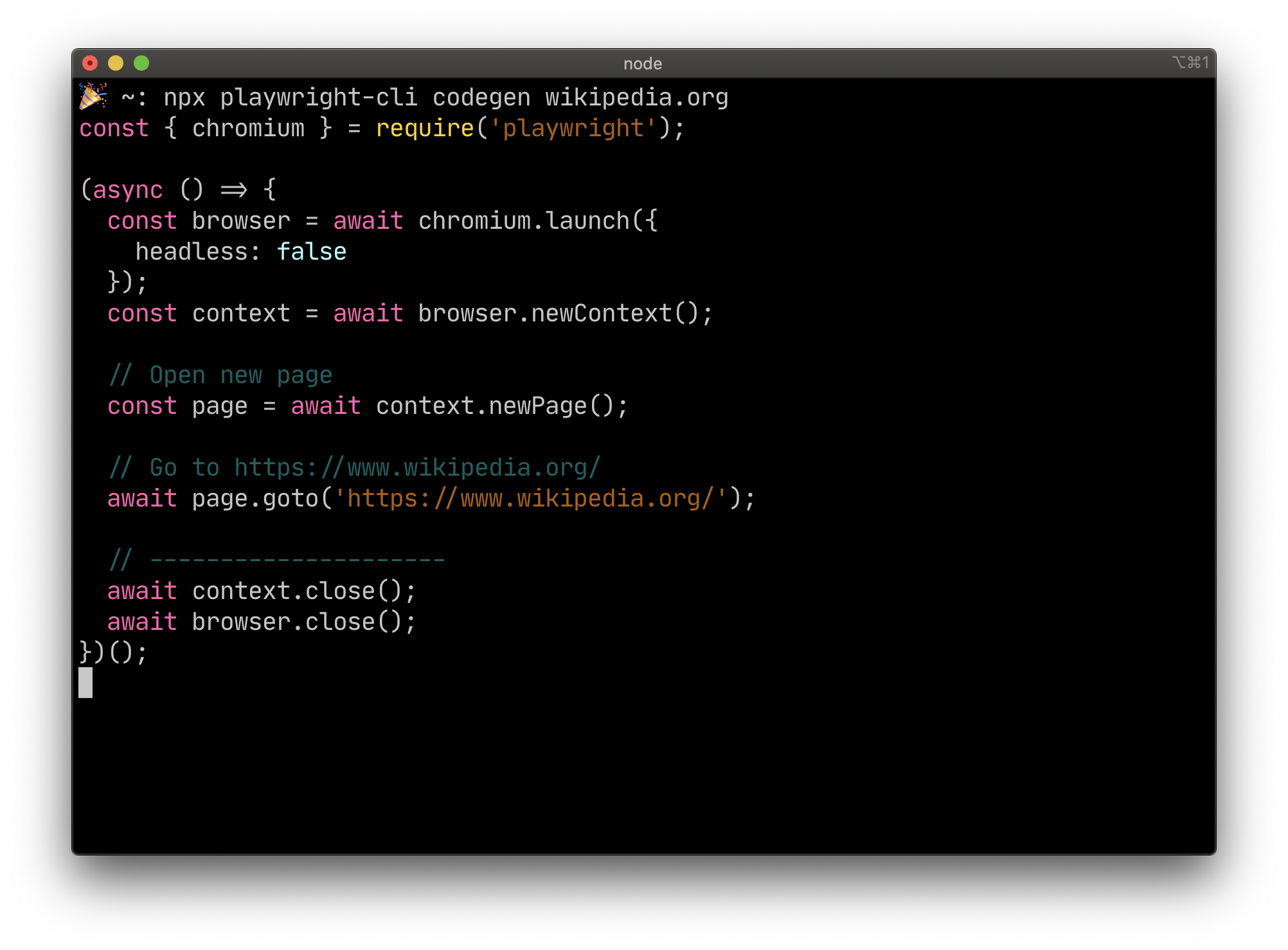
Open a new terminal and execute npx playwright-cli codegen wikipedia.org
Note: Replace "wikipedia.org" with any website of your choice. i.e. thomaschaplin.me
Step 2:
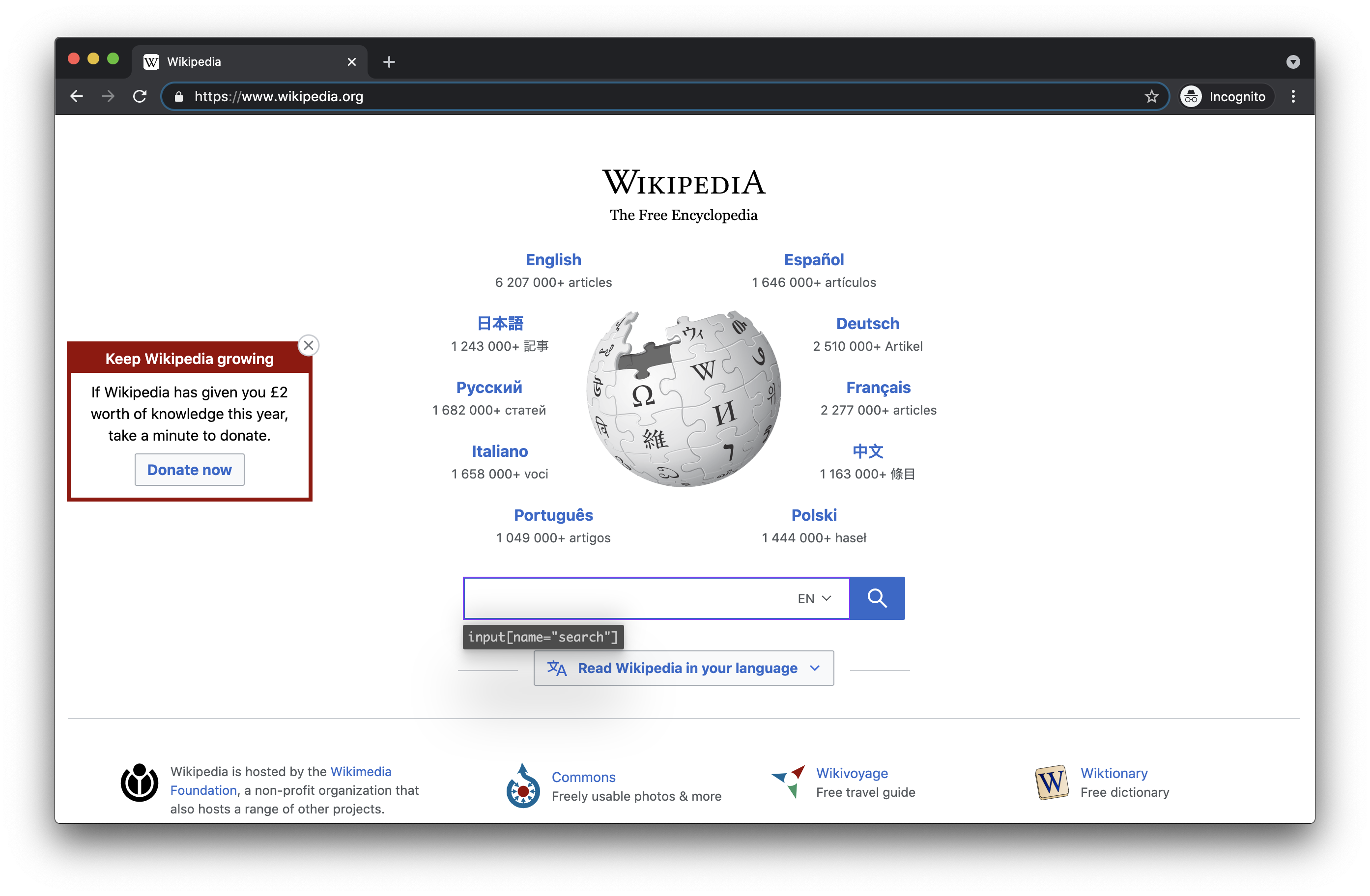
You should now have a Chromium instance loaded with the website you set in the previous step.
In addition, you will see the terminal window has populated some boilerplate code.
Notice when you move your cursor over an element, you will see the element outlined and the CSS selector in a tooltip. i.e. input[name="search"]
Step 3:
Click around, do whatever you want!
So you can follow along, I'm going to carry out the following steps:
- Type "automation" in the search field
- Click on the search button
- Click on the "random article" link from the left panel
Step 4:
Switch to your terminal window and press CTRL + C twice on your keyboard to end the process.
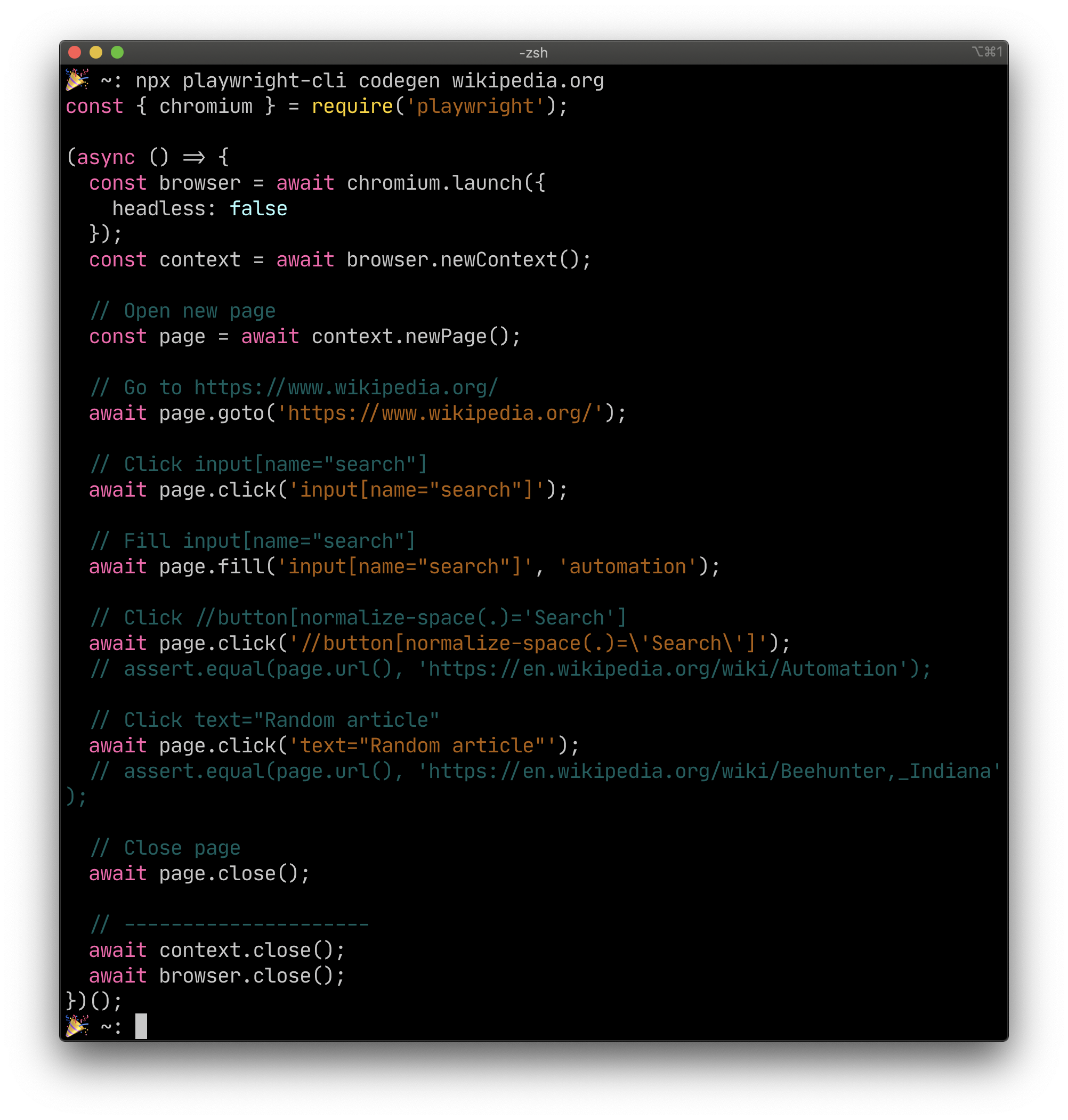
You will also notice the code has been generated for our simple actions.
Step 5:
In your terminal, create a new directory by executing mkdir playwright-cli-example
Move into the newly created directory by executing cd playwright-cli-example
Open the current directory in Visual Studio Code by executing code .
Step 6:
Initialise a new npm package in the terminal by running npm init --yes. We'll use the --yes flag to use the default options.
This will create a new file called package.json. You can ignore this file.
Step 7:
Install Playwright by executing npm i -D playwright in your terminal window.
You will notice a new file created called package-lock.json and a new folder named node_modules. You can ignore these as well.
Step 8:
Create a new JavaScript file named demo.js by executing touch demo.js in your terminal window.
Open the demo.js file in Visual Studio Code.
Copy and paste the code generated from our previous step into the demo.js file. It should look similar to the code block below if you've been following along with me.
const { chromium } = require('playwright');

(async () => {
  const browser = await chromium.launch({
    headless: false
  });
  const context = await browser.newContext();

  // Open new page
  const page = await context.newPage();

  // Go to https://www.wikipedia.org/
  await page.goto('https://www.wikipedia.org/');

  // Click input[name="search"]
  await page.click('input[name="search"]');

  // Fill input[name="search"]
  await page.fill('input[name="search"]', 'automation');

  // Click //button[normalize-space(.)='Search']
  await page.click('//button[normalize-space(.)=\'Search\']');
  // assert.equal(page.url(), 'https://en.wikipedia.org/wiki/Automation');

  // Click text="Random article"
  await page.click('text="Random article"');
  // assert.equal(page.url(), 'https://en.wikipedia.org/wiki/Beehunter,_Indiana');

  // Close page
  await page.close();

  // ---------------------
  await context.close();
  await browser.close();
})();
Step 9:
We can now execute the code by running node demo.js in the terminal.
Here's a gif which demonstrates what will happen in the browser:

Done
Congratulations, you've just automated a simple flow using Playwright.
Edit the code and have fun. See what you can achieve!